 SealReply
How to Track Live Chat Conversions in Google Analytics 4
Twenty lines of JavaScript put your chat events in GA4. The harder half is deciding which chat event is really a conversion, and which one just looks like one.
To track live chat conversions in Google Analytics 4, listen to the chat widget's JavaScript events, send each one to GA4 with gtag('event', …), and mark the one that matters as a key event under Admin → Data display → Events. That part takes about twenty lines of code. The harder half is deciding which chat event is really a conversion — and that is where most setups go wrong.
Key takeaways
- A chat widget gives the page two useful signals: the window opened, and a reply arrived. Read them with
SealReply.on("open", …)andSealReply.on("message", …). - De-duplicate before sending. The widget fires
openagain when it restores an already-open window on the next page, so one visitor can look like three conversions. - Mark
chat_openas a key event only if chat is your main inquiry channel. Otherwise leave it as a plain event and use it in comparisons. - A browser can never tell you "the visitor actually wrote something". That signal lives on your server, in the
conversation.createdwebhook. - For revenue, don't guess in GA4: post your orders back to the chat console and read Reports → Results, which ties orders to a chat within 30 days.
What counts as a live chat conversion?
A live chat conversion is the moment a visitor turns into an inquiry you can act on — not the moment a chat window opens. Opening a chat is cheap: people click the bubble out of curiosity, bounce, or open it twice. If you mark every open as a key event, your conversion count inflates and your Google Ads bidding learns from noise.
So before writing any code, decide which signal you are measuring. Here is what is available, and where each one comes from:
| Signal | Where you read it | Good as a key event? |
|---|---|---|
| Chat window opened | Browser, widget open event |
Only if chat is your main inquiry channel |
| A reply landed in the visitor's window | Browser, widget message event |
No — it measures your team, not the visitor |
| The visitor sent a first message | Your server, conversation.created webhook |
Yes, this is the real inquiry |
| The visitor left an email or phone number | Your server, visitor.identified webhook |
Yes, this is a lead |
| An order followed a chat | Your server, order postback | Yes, but measure it in the chat console, not GA4 |
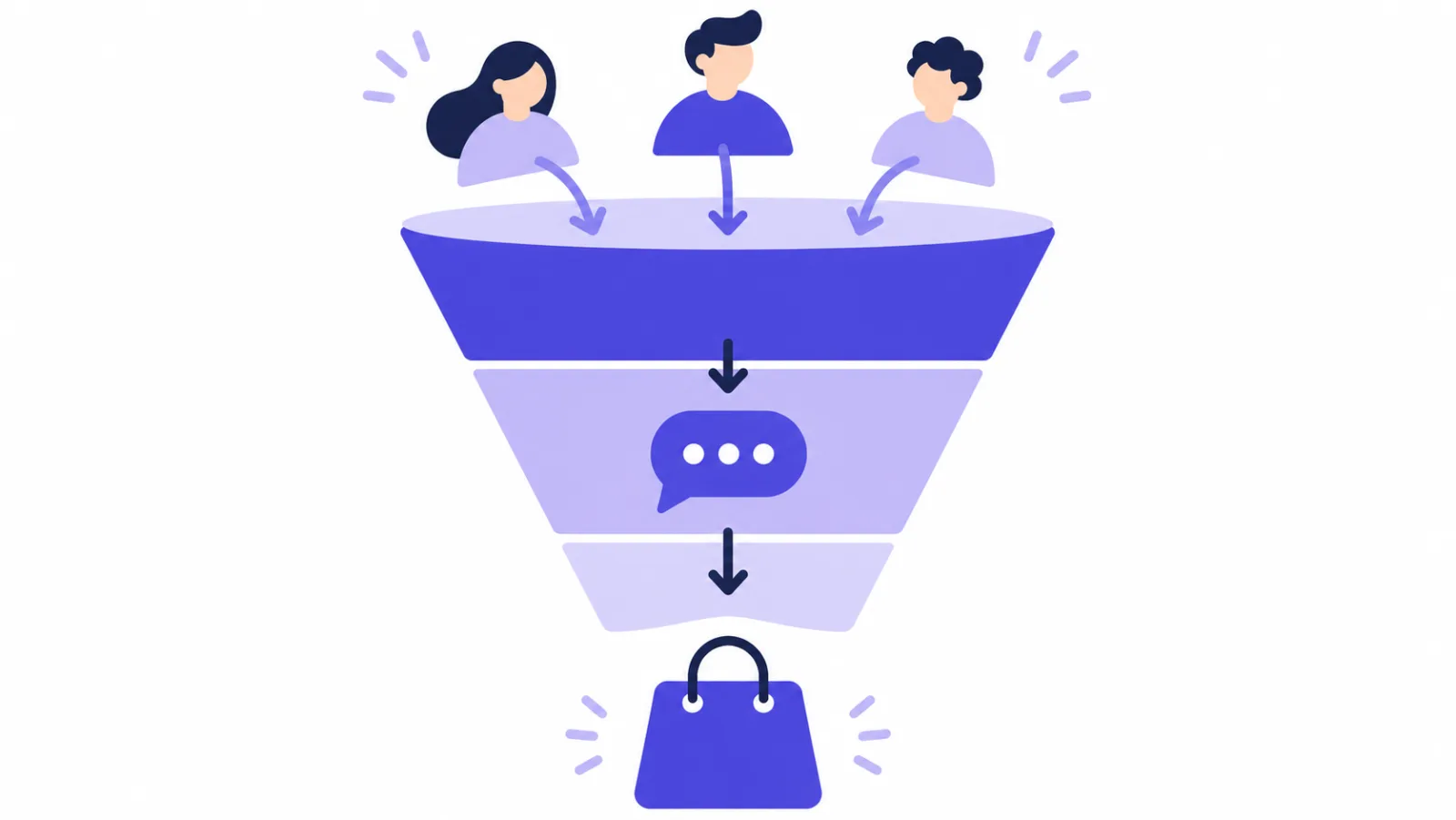
The browser only knows about the first two rows. That is a limit of every chat widget, not of a particular one: the page sees the window and the replies coming in, and nothing about what the visitor typed. So the practical setup for most small sites is this — send chat_open from the browser, treat it as an engagement signal, and let your server send the precise conversion later, once you have a plan with webhooks.
Step 1: Check that GA4 is already on the page
Open your site, press F12, and type typeof gtag in the console. If it answers "function", you are ready. If it answers "undefined", you have either no GA4 tag or a Google Tag Manager setup — jump to Doing it in Google Tag Manager instead.
You also want your measurement ID, the G- followed by ten characters you can find under Admin → Data streams → your web stream. A plain gtag install looks like this in your HTML:
<script async src="https://www.googletagmanager.com/gtag/js?id=G-XXXXXXXXXX"></script>
<script>
  window.dataLayer = window.dataLayer || [];
  function gtag() { dataLayer.push(arguments); }
  gtag("js", new Date());
  gtag("config", "G-XXXXXXXXXX");
</script>
Two details matter for the next step. gtag is a queue, so calling it before the Google script finishes loading is safe — the call is replayed. And your chat widget's script is independent of it; the order of the two tags on the page does not matter.
Step 2: Send the chat events to GA4
Paste this below both tags, before </body>. It waits for the widget, then forwards two events and refuses to send either one twice per browser session:
<script>
  function whenChatReady(fn) {
    if (window.SealReply) fn();
    else window.addEventListener("sealreply:ready", fn, { once: true });
  }

  // GA4 counts every event, so one visitor opening the chat on four pages
  // would be four conversions. Send each event once per browser session.
  function sendOnce(name, params) {
    var key = "sr_ga4_" + name;
    if (sessionStorage.getItem(key)) return;
    sessionStorage.setItem(key, "1");
    gtag("event", name, params);
  }

  whenChatReady(function () {
    SealReply.on("open", function () {
      sendOnce("chat_open", { chat_page: location.pathname });
    });
    SealReply.on("message", function () {
      sendOnce("chat_reply_received", { chat_page: location.pathname });
    });
  });
</script>
What each piece does:
whenChatReadyhandles the fact thatwidget.jsloadsasync:window.SealReplymay not exist yet when your script runs. The widget fires asealreply:readyevent onwindowwhen it is up, so you either find it already loaded or wait for that one event. Without this guard, your handlers are attached on a slow connection and silently missing on a fast one — or the other way round.sendOncewrites a flag tosessionStorage, which survives page navigation but not a new tab or a reopened browser. GA4's own session is a 30-minute inactivity window, so the two do not line up exactly; in practice a visitor who comes back tomorrow is a fresh session in both.chat_pagerecords which page the chat was opened from. GA4 attachespage_locationto every event anyway, but a parameter you control is easier to use in Explorations, and it tells you whether your pricing page or your docs drive the questions.
The `open` event fires more often than people click
The widget restores an open chat window on the next page the visitor views, and that restore emits open again — no click involved. It also fires when your own code calls SealReply.open(). sendOnce is not optional polish; without it, a two-page visit with the chat open is two chat_open events.
Two more rules from Google's side, worth knowing before you invent event names: an event name is at most 40 characters, an event carries at most 25 parameters, and a parameter value is cut at 100 characters. Those are GA4's property limits, and an event name over 40 characters is not reported as a key event at all.
Single-page apps: attach the handler once
In React, Vue or Next.js, run the code above once in your root component, not in the component that renders a "Chat with us" button. Client-side navigation does not reload widget.js, so a handler attached in a page component gets attached again on every route change and your events multiply. If you want to remove a handler, keep the function in a variable and pass it to SealReply.off("open", handler). The routing details are in how to add live chat to Next.js.
Step 3: Mark the event as a key event in GA4
A key event in GA4 is what used to be called a conversion: an event you have flagged as valuable, so it appears in conversion reporting, audiences and Google Ads bidding. Marking one takes four clicks, but GA4 has to have seen the event first.
- Trigger the event yourself once — open the chat on your own site.
- In GA4, go to Admin → Data display → Events.
chat_openappears in the list within a day. - Switch on the Mark as key event toggle in its row. Google's guide to creating and modifying events covers the same toggle for events you build inside GA4.
- Leave the default key event value empty unless a chat has a known average worth to you. A made-up number spreads through every report that shows revenue.
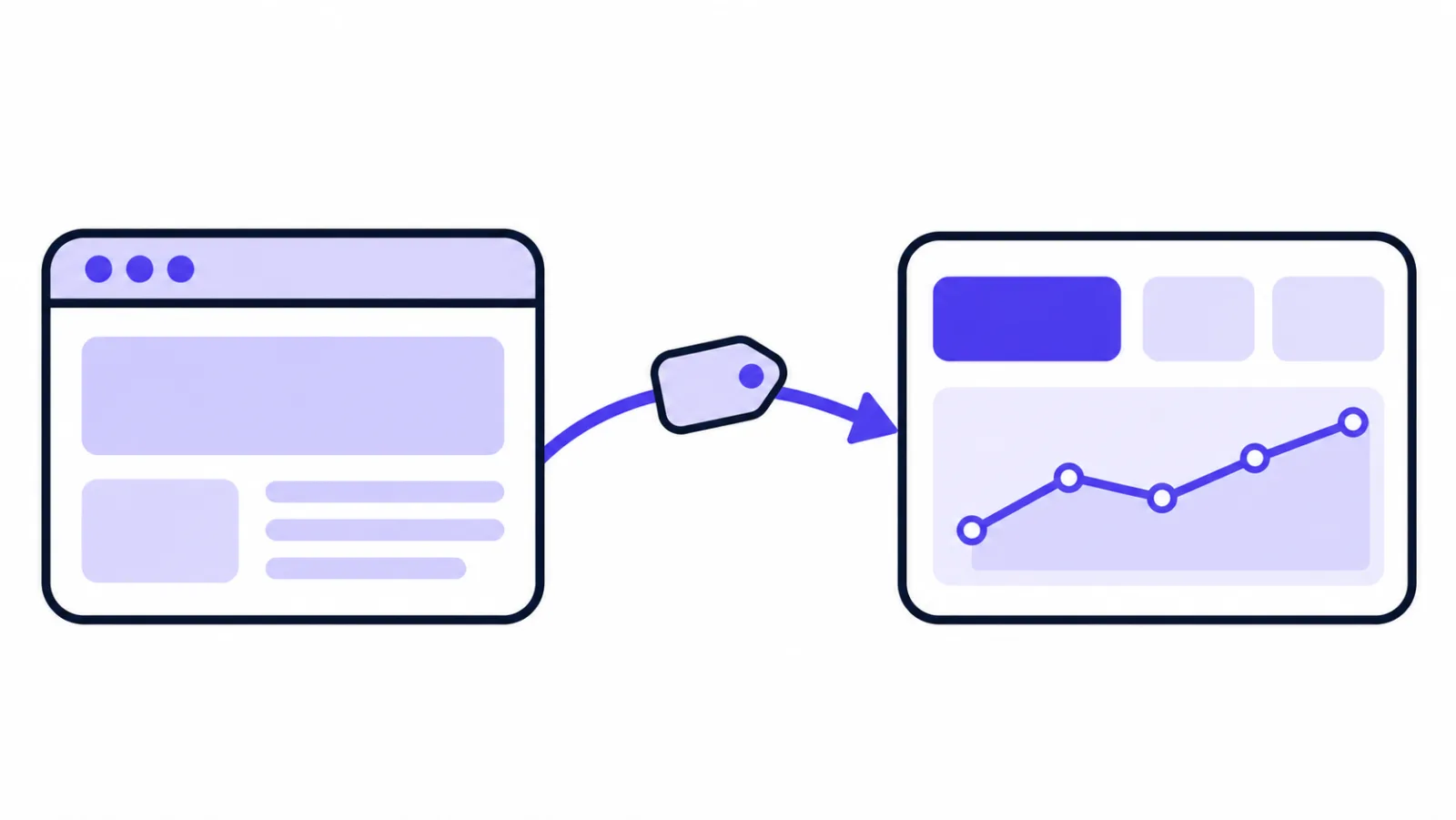
Do not mark chat_reply_received as a key event. It fires when your team answers, which means your conversion count would go up when you are fast and down when you are at lunch — a metric about your staffing wearing the costume of a metric about your visitors. Keep it as a plain event; it is genuinely useful in Step 5.
Step 4: Check the events actually arrive
Use Reports → Realtime: open the chat on your site, wait up to a minute, and look for chat_open in the event count card. Realtime covers the last 30 minutes, while the standard reports can lag by a day, so Realtime is the only sensible place to test.
For the detail — did the parameter arrive, what value did it carry — turn on DebugView. Add ?debug_mode=1 to your page URL, or add debug_mode: true to your gtag("config", …) call temporarily, then watch Admin → DebugView as you click. Every event appears as a card with its parameters listed, within a few seconds.
If nothing shows up
Check the browser console for an error in your handler first: the widget catches whatever your handler throws so a mistake cannot break the chat, which also means a typo fails quietly. Then confirm typeof gtag === "function" on that exact page — a tag added by one platform's "analytics" setting sometimes loads only on the home page.
Step 5: Do visitors who chat buy more often?
Once chat_open is flowing, you can answer the question that made you set this up: do people who chat convert better than people who don't? Build a comparison rather than reading two separate reports.
- Open any standard report, such as Reports → Engagement → Pages and screens.
- Click Add comparison → Create new and set the condition to Event name exactly matches
chat_open, applied at user scope. - Add a second comparison with the same condition, inverted, so you have "chatted" and "did not chat" side by side.
- Switch the report's metric to
purchaseor whichever key event your site already sends.
Read the result carefully. A visitor who opens the chat is already more interested than one who doesn't — they were further along before chat touched anything. The comparison tells you how large and how engaged your chatting segment is, which is the number you need when deciding whether to staff chat during more hours. It does not tell you that chat caused those purchases, and no amount of GA4 configuration will.
What about revenue? Post your orders back instead
Attributing money to a chat is a server-side job, and the chat console already does it. Your server sends each order to the orders endpoint, and an order placed within 30 days of a chat with the same visitor is tied to that visitor's latest conversation:
POST https://api.sealreply.com/v1/site-orders
Authorization: Bearer sr_live_…
Content-Type: application/json

{
  "site_id": "0192f000-0000-7000-8000-000000000201",
  "order_id": "A-1001",
  "amount": "59.90",
  "currency": "USD",
  "external_id": "42"
}
external_id is your own user ID, the same one you pass to the widget, which means this needs signed identification turned on — the how-to is in identify logged-in users in live chat. Guests who order without signing in are stored but not matched to a chat. Send the same order_id again to update an amount; DELETE /v1/site-orders/A-1001 takes a cancelled or refunded order back out of the report.
Reports → Results then shows a card, "Ordered after a chat (from your site)", with the order count and the amount per currency, beside the deals your team marked won by hand. The label it carries is the honest one: an order placed after a chat, not revenue the chat produced.
This part needs a paid plan
The orders endpoint and webhooks need Starter and up; the free plan has no open API, and 10,000 API calls a month come with Starter. Everything in Steps 1 to 5 is browser-side and works on every plan, free included.
If you would rather have the precise conversion inside GA4, the server-side route is the Measurement Protocol: capture the visitor's GA4 client ID in the browser with gtag("get", "G-XXXXXXXXXX", "client_id", cb), store it with the visitor, and when the conversation.created webhook arrives, send a generate_lead event to Google with that client ID. Verify the webhook's signature before you trust it — the code for that is in how to verify a webhook signature.
What not to send to Google
Never send message text, email addresses, phone numbers or names to GA4. Google's terms forbid personally identifiable information in Analytics, and a chat transcript is about the most sensitive thing on your site: it is where people type order numbers, addresses and complaints. Event parameters are for shapes, not contents — which page, which plan tier, how many pages before the chat.
The practical version of that rule: build parameters from your own page structure, not from the chat. chat_page: "/pricing" is fine. first_message: "my order A-1001 hasn't arrived" is a data breach with extra steps. In SealReply, chat content is stored encrypted with a per-customer key, and nobody on our side can read a conversation without two-person approval and a notice to you; sending the same text to a third-party analytics product throws that away.
Doing it in Google Tag Manager instead
If GA4 reaches your site through Google Tag Manager, keep the structure and change the last line. Push to the data layer instead of calling gtag:
window.dataLayer = window.dataLayer || [];
dataLayer.push({ event: "chat_open", chat_page: location.pathname });
Then in GTM: a Custom HTML tag firing on Initialization — All Pages holds the listener code, a Custom Event trigger matches chat_open, and a GA4 Event tag sends it on with chat_page mapped from a Data Layer Variable. This is the right path if you do not control the site's HTML, or if someone else owns the analytics setup and you only want to hand them an event.
FAQ
Can I track live chat in GA4 without Google Tag Manager?
Yes. The widget exposes SealReply.on("open", handler) directly in the page, so a <script> block that calls gtag("event", "chat_open") is all you need. Tag Manager is only worth the extra layer if you already run it, or if you cannot edit the site's HTML.
Should "chat opened" be marked as a conversion in GA4?
Only if chat is how inquiries normally reach you. Opening a chat window takes one curious click, so on a site where most people buy without asking anything, marking it as a key event inflates your conversion count and feeds noise to Google Ads bidding. A safer key event is the visitor leaving contact details, which arrives on your server as the visitor.identified webhook.
Why does my chat_open count look too high?
Almost always missing de-duplication. The widget re-opens the chat window on the next page a visitor views, which fires open again without a click, and GA4 counts every event it receives. The sendOnce helper above holds a flag in sessionStorage so each event is sent once per browser session.
Can I see which ad campaign a chat came from?
In GA4, yes: chat_open inherits the session's source, medium and campaign like any other event, so Reports → Acquisition → Traffic acquisition with a chat comparison shows it. The chat console shows it too, without any setup — Reports → Sources lists channels, ad campaigns, countries and devices behind your conversations.
Does adding this code slow my site down?
No measurable amount. You are adding a listener and, at most, two gtag calls per session; the weight on the page is the two scripts you already have. The chat widget itself is about 38 KB of asynchronous JavaScript that does not block the page from rendering, and the GA4 tag loads asynchronously too.
Can I track chats on the free plan?
Yes, everything in the browser works on every plan: the widget's JavaScript API, the open and message events, and the GA4 key event. What needs Starter or above is the server side — webhooks, the open API and the order postback that ties orders to conversations.
Next steps
Get the measurement honest before you make it clever. Send chat_open, watch it for two weeks, and see how many of your visitors actually reach for chat; on many small sites the number is a surprise in one direction or the other.
If the chat on your site is still a default install, the two settings that change your numbers most are a page-specific greeting and a working offline path — both are covered in how to add live chat to your website, and the whole sequence from installing to following up on a lead is in live chat for small business.