 SealReply
How to Add Live Chat to Your Website (Any Platform)
One line of code, pasted once, puts a live chat on every page. Here is how to do it on plain HTML, WordPress and Shopify, and how to check it works.
Adding live chat to a website takes one line of code: you paste a small script just before the closing </body> tag, and a chat button appears on every page. The whole job — sign up, paste, verify, test — takes about five minutes on most sites, including WordPress and Shopify.
This guide walks through it step by step, using SealReply as the example. The same idea works for almost any live chat tool.
What you need
- Access to edit your website: the HTML files, your WordPress admin, or your Shopify admin.
- A free SealReply account. The free plan has no time limit, so you can install and test without paying.
- Five minutes. If you choose to verify your domain through DNS, the record can take a few extra minutes to appear.
Step 1: Add your website
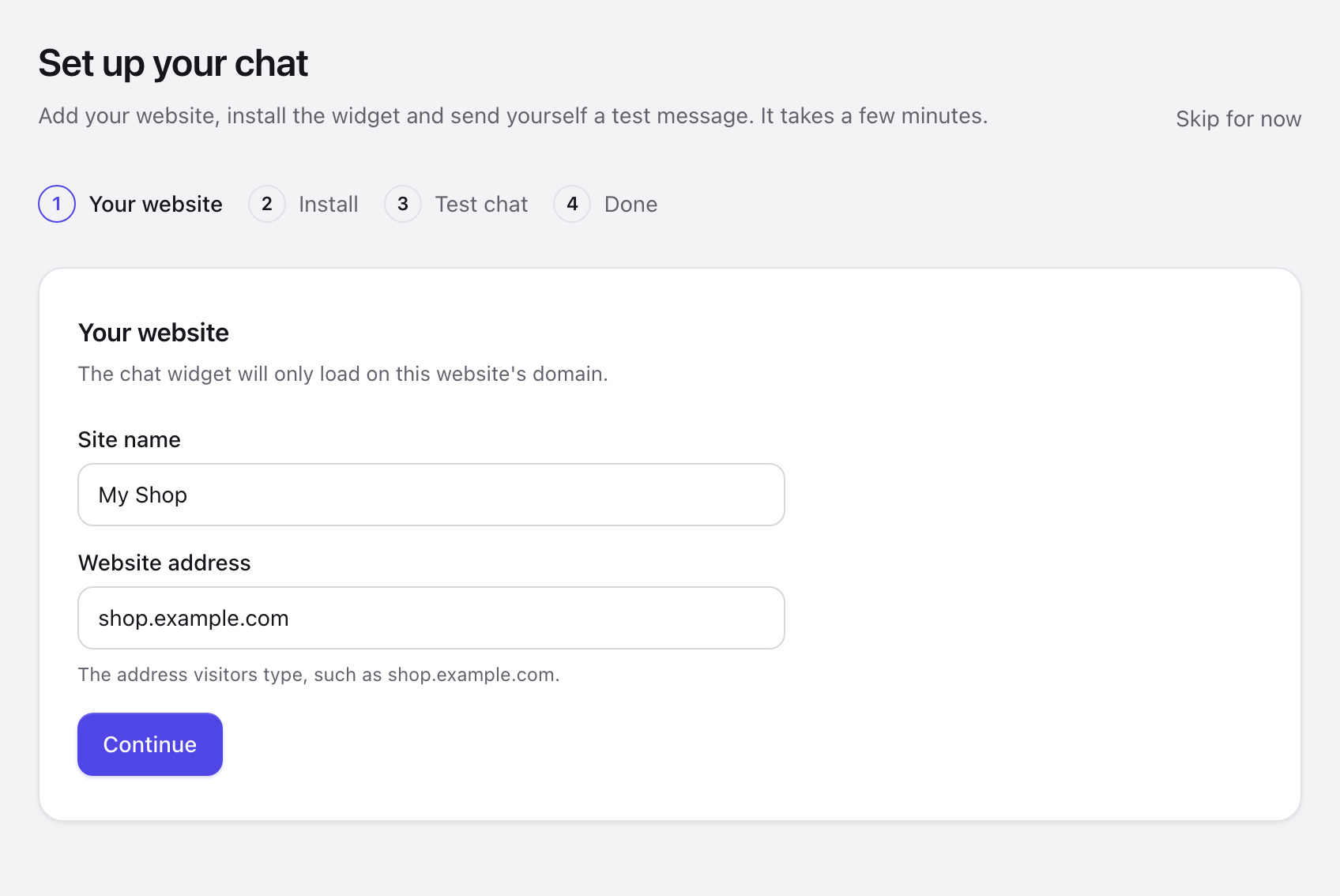
After you sign up, the console opens a short setup called Set up your chat.
- Under Your website, give the site a Site name you'll recognise, such as My Shop.
- Under Website address, enter the address visitors type, such as
shop.example.com. - Click Continue.
The chat widget only loads on the domains you add here (and their subdomains). If someone copies your code onto another site, the chat simply doesn't appear there.
Step 2: Copy the embed code
The next step, Install the widget, shows your code. It looks like this:
<script src="https://cdn.sealreply.com/widget.js" data-site-key="sk_…" async></script>
The data-site-key is unique to your site. Click Copy.
The script is about 38 KB and loads async, so it doesn't block your page from showing. If you want the chat to wait until the rest of the page has finished loading, tick Load the chat after the page and copy that version instead.
Step 3: Paste it into your site
Pick your platform below. The rule is always the same: paste the code once, just before </body>, in a place that's shared by every page.
Plain HTML or any site builder with a footer setting
- Open the template or file that holds your site's footer. On a static site, that's every
.htmlpage; most site builders have a "custom code" or "footer code" setting instead. - Paste the code just before
</body>. - Publish the change.
WordPress
You have two options. The first is safer because a theme update won't remove the code.
Option A — with a code plugin (recommended)
- In your WordPress admin, install a plugin that adds code to the footer, for example WPCode.
- Add a new footer snippet, paste the code, and save.
Option B — in your theme
- Go to Appearance → Theme File Editor and open
footer.php. - Paste the code just before
</body>and click Update File.
If you edit the theme directly, use a child theme, or the code will disappear the next time the theme updates.
Shopify
- In your Shopify admin, go to Online Store → Themes.
- Next to your current theme, click … → Edit code.
- Open
layout/theme.liquid. - Paste the code just before
</body>and click Save.
The end of theme.liquid then looks like this:
    …
    <script src="https://cdn.sealreply.com/widget.js" data-site-key="sk_…" async></script>
  </body>
</html>
Step 4: Verify your domain
To make sure nobody can put a chat on a website they don't own, the widget stays hidden until you prove the domain is yours. You only do this once, for your first domain.
In Sites → your site → Domain verification, choose one of two options:
- Add a DNS TXT record. Copy the name and value into your domain's DNS settings (at your registrar or DNS host). This takes a few minutes to take effect.
- Publish a file. Upload a small text file to the address shown. This is often quicker if you can upload files to your site.
Then click Check now.
Step 5: Send yourself a test message
Open your website. The setup page checks for the widget automatically every few seconds, and shows The widget has loaded on your website once it sees it.
Then do a test chat:
- Click Open my website. The chat opens by itself.
- Send a message as if you were a visitor.
- Answer it from the console when it appears.
You now see both sides: what your visitors see, and where you answer. Test chats don't count toward your monthly chats and are left out of your reports.
If the chat doesn't appear
The setup page tells you what it sees. The most common causes:
| What the console says | What to do |
|---|---|
| Not detected yet | The code isn't on the page you opened. Check that you saved and published, and clear any caching plugin or CDN cache. |
| Verify your domain first | Finish Step 4. DNS records can take a few minutes; click Check now again. |
| Loaded on a different domain | You opened the site on an address you didn't add (for example www. versus no www., or a staging address). Add it under Edit allowed domains. |
If your site sends a Content Security Policy header, it also needs to allow the widget's addresses. They're listed in our widget documentation.
What to do next
The chat works now. Three things make it much more useful:
- Make it look like your site. Add your logo, colour and greeting — there's a live preview beside the settings.
- Get new chats on your phone. Turn on push notifications so you hear about new chats even when the console is closed. Lock screens show only the site and page, not what the visitor wrote.
- Set your business hours. Outside them, visitors leave a message instead of waiting for a reply that won't come.
Read more: How to never miss a customer when you're offline.