 SealReply
"Proactive Chat Triggers: When to Invite Visitors Without Annoying Them"
Proactive chat turns a hesitating visitor into a question, or chases them off the page. Here are the triggers, timings and wording that work, page by page.

Good proactive chat triggers are late, rare and small. Late: wait until the visitor has spent 20 to 45 seconds on the page, or scrolled past the halfway mark. Rare: invite the same person at most once a day. Small: show a few words beside the chat button instead of covering what they are reading.
Key takeaways
- Opening the chat window the second someone lands is the most common mistake. Give them 20 seconds of reading first.
- Invite on high-intent pages (product, pricing, cart). Never invite on checkout or on any page with a form being filled in.
- On long pages, a scroll trigger at 60% beats a timer: the people still reading that far down are the ones with a real question.
- Write one specific line about that page, such as "Need a hand picking a size?" Not "Hi, how can I help you?"
- In SealReply, invitations live under Sites → your site → Page rules, up to 10 rules, on every plan. The same visitor is invited at most once every 24 hours by default.
Proactive chat means the site speaks first: a short line appears next to the chat button asking whether the visitor wants help. Done well, it turns someone who would have closed the tab into a question you can answer. Done badly, it is the shop assistant who follows you around.
The difference is not whether to invite, but when, on which page, and how often. If you are still setting live chat up at all, start with the complete guide to live chat for small business and come back to this.
Why do proactive chat invitations annoy people?
What annoys visitors is not the invitation, it is the interruption. Being covered before you have read anything, being asked again on every page, and being asked when nobody is actually there to answer.
| What sites do | How it feels | Do this instead |
|---|---|---|
| Open the chat window on page load | The content is hidden; first job is finding the close button | Show a small bubble by the button, page untouched |
| Invite on every page | Being followed around the shop | Once per visitor per 24 hours, high-intent pages only |
| Invite when nobody is staffing chat | Worse than silence: they wrote and got nothing | Only invite while an agent is online (SealReply does this automatically) |
| Invite during checkout | Interrupted mid-payment, order abandoned | Never invite on checkout or form pages |
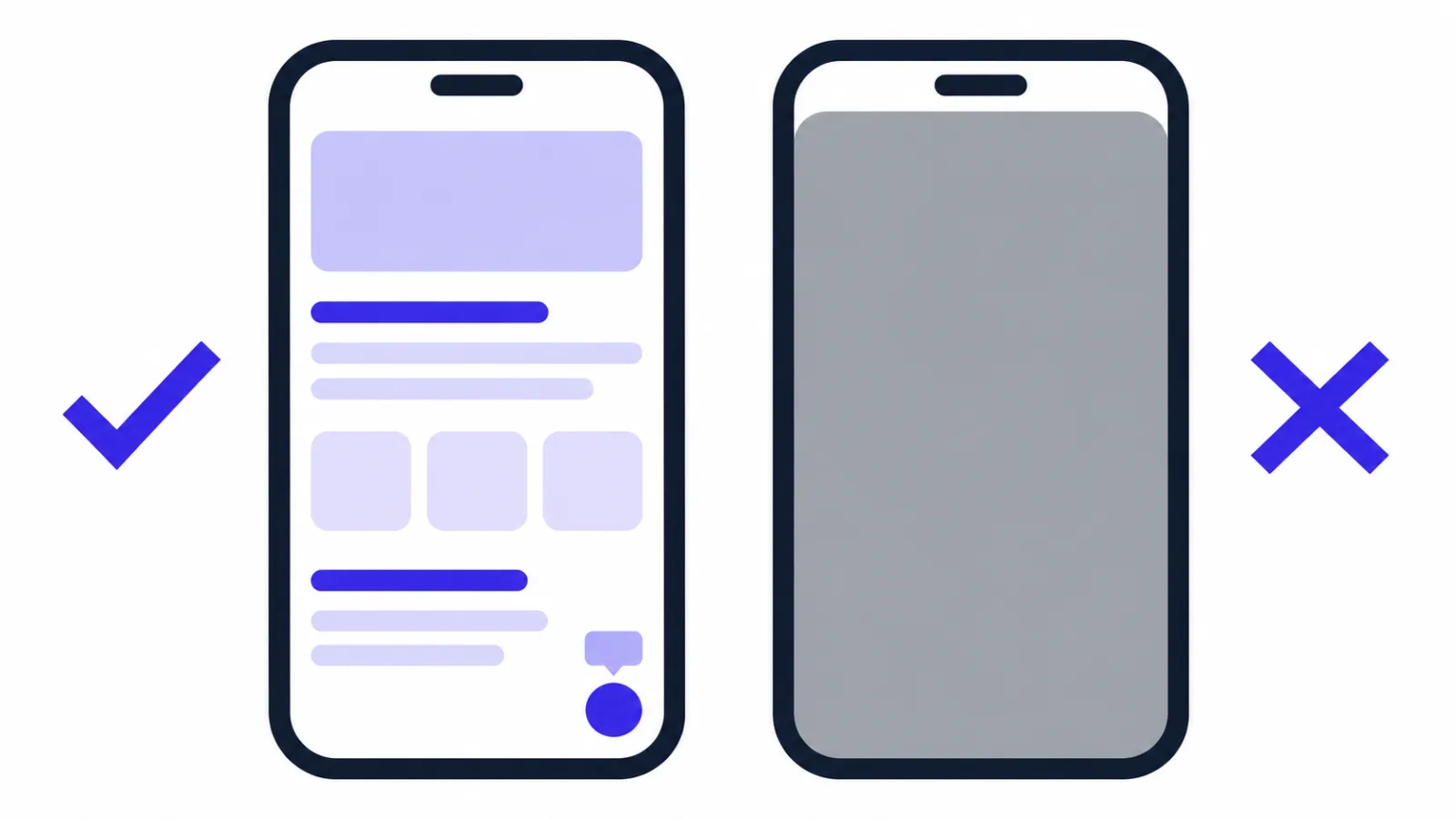
Phones make this sharper, because one auto-opened window is almost the whole screen. Google's search documentation says plainly that interstitials and dialogs that obstruct the content hurt the mobile experience, and recommends banners that take up only a small part of the screen instead (Interstitials and dialogs). That is why invitations on phones stay as bubbles.
Proactive chat, page greetings or a manual hello?
These three solve different problems. A page greeting changes the first line a visitor sees after they open the chat themselves. An automatic invitation makes the site speak first. A manual hello is an agent choosing one specific person who is on the site right now.
| Way | Who triggers it | What the visitor sees | Best for |
|---|---|---|---|
| Greetings by page | The visitor opens the chat | A first line written for that page | Every page. Zero risk of interrupting |
| Automatic invitation | Time on page or scroll depth | A short bubble beside the chat button | Product, pricing and cart pages |
| Manual hello | An agent, from Live visitors | A message from a named agent by the button | One visitor who looks worth the time |
Page greetings only change wording: nothing is sent and the chat never opens by itself. You get up to 20 rules, and you can lift the lines straight from 25 live chat greeting messages that get replies. Manual hellos happen on the Live visitors page, which refreshes every 10 seconds and shows the page someone is reading, how long they have been on it, where they came from and how many times they have visited.
Page greetings first, invitations second
Page greetings cannot interrupt anyone; invitations can. Write one greeting each for your product, pricing and help pages, watch for a week or two, then add an automatic invitation to the page type that already produces the most questions. That way you know which step earned the extra chats.
How many seconds, or how far down the page?
Set it per page, never site-wide. Thirty seconds on a product page means someone is comparing details; thirty seconds on the home page may mean they cannot find the menu.
Use the numbers below as a starting point, then adjust after two weeks of real traffic:
| Page | Suggested trigger | Why |
|---|---|---|
| Product or service detail | 30 seconds | They have seen the photos and specs and have not left: something is holding them back |
| Pricing or plans | 20 seconds | People who linger on pricing are doing maths, and their question is easy to answer |
| Cart | 30 seconds | Shipping cost, tax and payment questions are exactly what one line can rescue |
| Docs or long articles | Scroll 60% | Reaching the bottom without an answer is the signal that they need a person |
| Home or landing page | 45 seconds, or nothing | New arrivals are still orienting; speaking too early pushes them out |
| Checkout | Never | Interrupting someone typing card details costs you the order |
| Logged-in account pages | Never | These people are doing admin, not shopping |
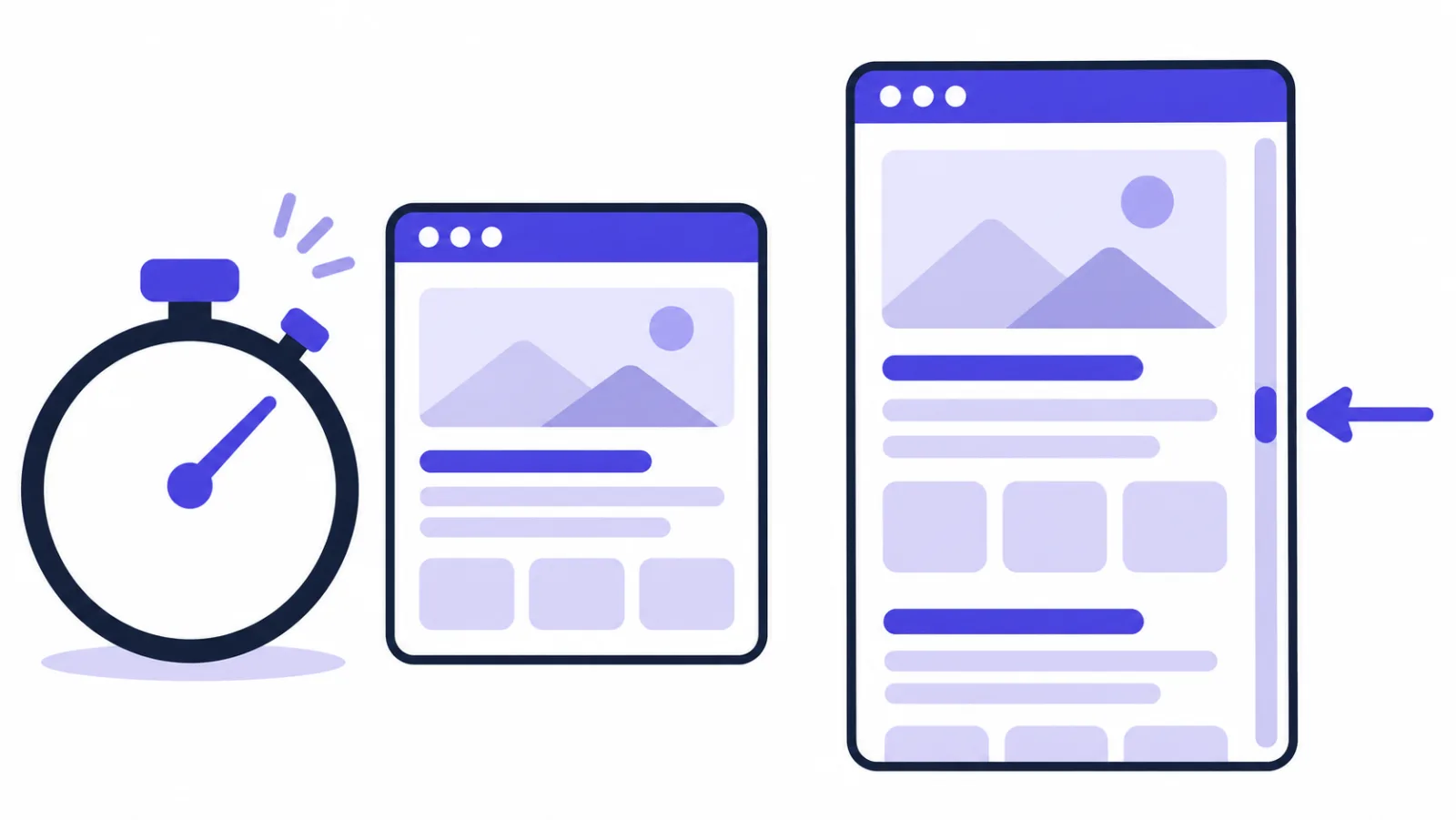
Seconds or scroll depth depends on page length: use seconds on pages that fit in a screen or two, scroll depth on pages people have to scroll through. SealReply allows 5 to 600 seconds, or 10% to 100% scroll depth. On a page too short to scroll, a scroll trigger never fires, so keep timers for short pages.
Keep invitations off form pages
Checkout, sign-up and quote request pages all have someone typing. Either leave those pages out of your rules, or hide the widget there entirely with a "pages without the chat" rule.
What should the invitation say?
One sentence, about this page, asking the question they are already asking themselves. "Hi, how can I help you?" says nothing. "Need a hand picking a size?" gets opened.
| Page | Invitation you can paste in |
|---|---|
| Product detail | Need a hand picking a size? / Want to know how fast this ships to you? |
| Pricing | Not sure which plan fits? Tell me your team size and I will check. |
| Cart | Question about shipping cost or a discount code? I am here. |
| Docs | Stuck on this step? Paste the error and I will look. |
| Wholesale or custom orders | Need a bulk quote? Send me the quantity and model. |
Three rules for the wording:
- Write the text per language, up to 200 characters each; visitors see the one in their own language. If you sell across borders, see how to chat with customers who speak another language.
- Whatever you write becomes the first line inside the chat once the visitor opens it, so it has to be answerable. Questions work better than statements.
- Do not promise what you cannot keep. "We reply instantly" needs someone there. If that is the gap, fix the out-of-hours flow first: how to never miss a customer when you are offline.
How often may the same visitor be invited?
Once every 24 hours is enough for almost everyone. The value is in the first invitation; the second is just noise, and being asked twice in one visit is worse than not being asked at all.
In SealReply the setting is called "Invite the same visitor at most every", with choices of 1, 6 or 12 hours, or 1 day (the default), 3 days, 7 days or 30 days. Two more limits apply automatically:
- One invitation per page. Staying longer or scrolling back up does not trigger a second one.
- The interval is remembered in the visitor's own browser, in localStorage. When the browser blocks storage, as some private modes do, the widget simply does not invite.
Chats an agent starts by hand have separate limits: the same agent can greet the same visitor only once every 10 minutes, and each agent can start at most 30 chats an hour. An owner can lower that under Team → Workspace settings → Each agent may start chats with visitors, an hour.
Should the invitation open the chat window?
Usually not. A bubble takes a corner of the screen and can be ignored; an opened window covers the content and has to be dismissed.
There are exceptions, such as a paid landing page whose entire job is to get questions. Each SealReply rule has a checkbox, "Open the chat (phones still get the bubble)", so desktop visitors get the window and phone visitors keep the bubble without you configuring anything twice.
Both the bubble and the window float above the page rather than pushing content around, so neither affects layout stability metrics such as Cumulative Layout Shift.
How do you set up invitations in SealReply?
Under Sites → your site → Page rules, in a few minutes, on every plan including Free. If the widget is not installed yet, start with how to add live chat to your website.
- Open Sites in the left menu, click your site, then pick Page rules.
- Under "Invitations", click Add invitation.
- Choose the match and the page: Path starts with
/products, Path is/pricing, or Address containspricing. Paths begin with/, carry no?or#, and are not regular expressions. - Choose the trigger: After N seconds on the page (5 to 600), or Once scrolled N % (10 to 100).
- Write the invitation text. On multilingual sites, switch language tabs above and fill in each one; at least one language is required.
- Tick Open the chat (phones still get the bubble) only if you want the window to open on desktop.
- Rules are matched top to bottom and the first match wins, so put specific pages above broad ones. Ten rules per site.
- Set "Invite the same visitor at most every" and click Save. Visitors see it on their next page load.
When the widget stays quiet
No invitation is shown when no agent is available, when the visitor is already chatting, when the chat window is open, or on a page you have set as "pages without the chat". You never have to worry about inviting someone nobody can answer.
How do you know whether invitations are working?
Add one rule at a time and watch what changes. Chats that start from an invitation look like any other visitor-started chat in the workspace, so the way to read the result is to change one thing at a time.
- Add a rule to one page type only, such as product pages, and leave it for two weeks.
- Open Reports → Results and look at "Pages behind won deals": it ranks the pages conversations started on by the deals your team marked won. The results report covers the last 30 days; Professional and Business can pick any range.
- Chats agents start by hand are counted separately: the CSV you export from Results has a "Started by your team" row.
- If a page type only produces "just looking" chats, make the wording more specific or push the timer further out.
FAQ
Do proactive chat invitations slow down my site?
No. Invitations are part of the widget that is already loaded, so they add no extra requests. The widget itself is a roughly 38 KB asynchronous script that does not block the page from rendering, and the bubble floats above the page instead of moving content.
Do invitations show on phones?
Yes, but only as a bubble beside the chat button. Even if a rule has "Open the chat" ticked, phones still get the bubble, because an auto-opened window on a small screen covers nearly the whole page.
Will visitors be invited when nobody is online?
No. The widget only invites while someone can take the chat, and never while the visitor is already chatting or has the chat open. For the hours when nobody is around, use business hours messages and offline messages instead.
Is proactive chat a paid feature?
No, invitations are on every plan, including Free. Each site can have up to 10 invitation rules, each up to 200 characters per language.
What happens when two rules match the same page?
Only one fires: rules are matched from top to bottom and the first match wins. Put the narrower page, such as /products/sale, above the broader one, such as /products.
If a visitor ignores the bubble, does it come back?
No. One invitation per page, and one per visitor per interval, which is 24 hours by default. If the visitor's browser blocks storage, the widget skips the invitation entirely.
What to do next
Three steps: write a page greeting each for your product, pricing and help pages; add one automatic invitation to the page type worth a conversation, starting at 30 seconds; and keep checkout and form pages out of it. In two weeks, check "Pages behind won deals" and decide whether a second rule is worth it.