 SealReply
How to Add Live Chat to WooCommerce (and Set It Up Per Page)
WooCommerce runs on WordPress, so you don't need a WooCommerce chat plugin. Paste one line in your footer, then spend ten minutes setting the chat up per page.
To add live chat to WooCommerce, paste the chat widget's one-line code into your site's footer. WooCommerce runs on WordPress, so there is no WooCommerce-specific chat plugin to hunt for, and the install takes about five minutes.
Key takeaways
- WooCommerce has no built-in live chat, but any chat widget that installs on WordPress works on every shop page, checkout included.
- The install is one line of code in the footer, added with a footer code plugin so theme updates can't remove it.
- After the install, give product, cart, checkout and account pages their own greeting with page rules. Up to 20 rules per site.
- Hide the chat on checkout with Path is, never Path starts with, or the order-received page loses it too.
- Business hours, an after-hours message form and push notifications keep night-time questions from getting lost.
The install is the easy part. What actually makes the chat earn its place in a shop is the ten minutes after: a shopper on a product page, a shopper staring at the cart and a shopper stuck at checkout have three different questions, and your chat should open with three different lines. This guide uses SealReply as the example and covers both. For other platforms, see how to add live chat to your website.
What do you need before you start?
You need three things, and none of them costs money:
- An administrator account on the WordPress site your shop runs on.
- A free SealReply account. The Free plan has no end date.
- Your shop's page addresses. By default WooCommerce uses
/shop/for the product list,/product/<name>/for a product,/product-category/<name>/for a category,/cart/,/checkout/and/my-account/. If you changed the product or category base, check Settings → Permalinks and use your own in the rules below. The WooCommerce permalinks documentation explains where each base is set.
Step 1: How do you add live chat to WooCommerce?
You add live chat to WooCommerce by creating a site in the chat console, copying its embed code and pasting it into your WordPress footer once.
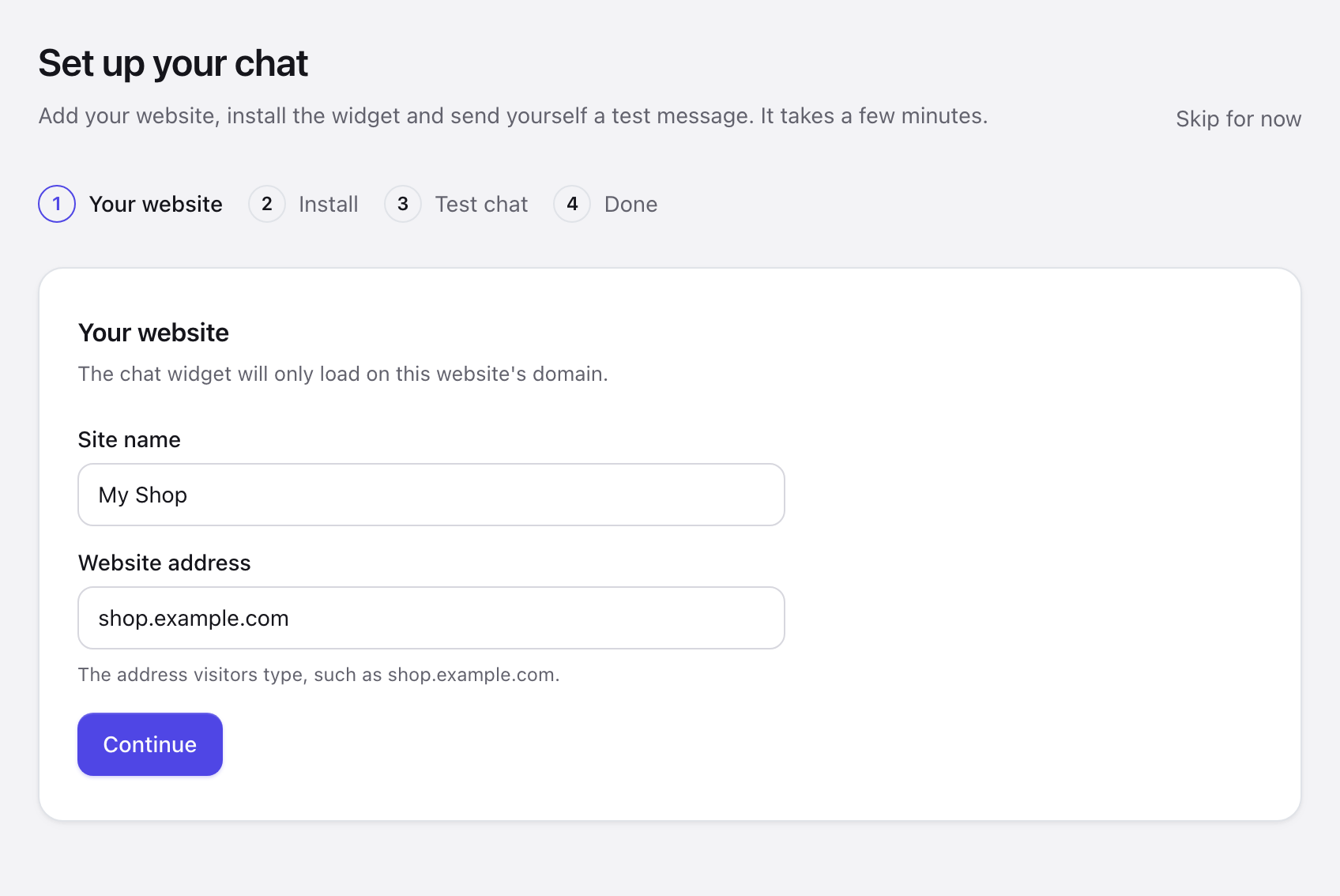
- Sign up. The console opens Set up your chat.
- Under Your website, enter a Site name and your shop's Website address, such as
shop.example.com, and click Continue. - On Install the widget, choose WordPress under Your website runs on and click Copy.
- Paste the code into your footer, using one of the three methods below.
- Clear your caching plugin and your CDN, then open your shop's home page once.
The code looks like this:
<script src="https://cdn.sealreply.com/widget.js" data-site-key="sk_…" async></script>
Add it the WordPress way — pick one of three:
| Method | Where the code goes | Survives a theme update? | Best for |
|---|---|---|---|
| Footer code plugin (recommended) | The plugin's Footer box, for example in WPCode | Yes | Almost every shop |
Child theme footer.php |
Just before </body> |
Yes, in a child theme | Shops that already run a child theme |
| Block theme | No footer.php; the Site Editor can't add a script to every page |
— | Use a footer code plugin instead |
Step-by-step screens for all three are in how to add live chat to WordPress.
Paste it once
Pasting the code twice — say, in a plugin and in footer.php — can give you two chat buttons. If you switch methods, remove the old copy first.
Opening the home page also verifies your domain: we look for your embed code on the home page, and the button appears in the corner on the next reload. Keep the setup page open in a tab; it checks your site every few seconds and says The widget has loaded on your website. when it finds it. If the code isn't in your home page's source — added through Google Tag Manager, say — add the DNS TXT record or upload the file shown under Domain verification instead.
The widget is about 38 KB and loads asynchronously, so it doesn't block your pages from showing.
Step 2: Does the chat show on every WooCommerce page?
Yes, footer code runs on every WooCommerce page, because each one is an ordinary WordPress page. Templates and caching are what trip shops up, so spend two minutes opening one page of each kind:
| Page | Address | What to look for |
|---|---|---|
| Shop | /shop/ |
Button there, not covering the filters |
| Product | /product/any-product/ |
Button there, not covering Add to cart |
| Cart | /cart/ |
Button there, not covering Proceed to checkout |
| Checkout | /checkout/ |
Button there — WooCommerce checkout is a normal page, unlike Shopify's, so your code does run |
| My account | /my-account/ |
Button there |
If the button sits on top of something, move it to the bottom left or increase its distance from the edge under Look. On phones you can turn Show the chat button on phones off and open the chat from your own "Contact us" link instead.
Step 3: Send yourself a test chat
The quickest proof that everything works is one test message. On Send a test message in the setup, click Open my website: your shop opens with the chat already open. Write something as if you were a shopper, then answer it from the console. The test link works for 30 minutes, and test chats don't count towards your monthly allowance or appear in reports.
Step 4: How do you give each page its own greeting?
You give each page its own greeting with page rules: open Sites → your site → Page rules → Greetings by page and add one rule per kind of page. The first rule that matches wins, so order them from most specific to least.
| Match | Page | Greeting |
|---|---|---|
| Path starts with | /product |
Sizing, materials, delivery — ask away |
| Path is | /cart |
Want me to check shipping or a discount code for you? |
| Path is | /checkout |
Anything holding up your order? |
| Path starts with | /my-account |
Order status, address changes, returns — ask here |
| Path starts with | /product-category |
Not sure which one? Tell me what it's for |
A few things worth knowing:
- Path starts with matches whole segments:
/productcovers every product page under it, and leaves a page like/products-guidealone. - Only the greeting changes. Nothing is sent and the chat doesn't open by itself — shoppers see the line when they open the chat.
- Write each language separately; languages you leave empty fall back to the site's default. If you sell abroad, fill in English as well.
- Up to 20 rules per site, and Try a page address next to them tells you which rule a given URL hits.
For lines you can paste straight in, see these live chat greeting messages.
Step 5: When should you invite shoppers to chat?
Invite shoppers after they have lingered on a product page or the cart — that's when a doubt is most likely. In the same section, Invitations pops a short line beside the chat button after a visitor has spent some seconds on a page, or scrolled far enough down it. Two rules are enough for most shops:
- Product pages: path starts with
/product, after 45 seconds — "Want a hand with sizing?" Someone who has read for a minute without adding to cart usually has a doubt. - Cart: path is
/cart, after 20 seconds — "Questions about shipping or a coupon?"
Don't nag regulars
Leave Invite the same visitor at most every on its default of one day. Drop it to hours and regulars get invited again on every product page they open.
Invitations only go out while someone can actually chat, and never while the visitor is already chatting or has the window open.
Should you hide the chat on the checkout page?
Keep it. The instinct is to keep checkout distraction-free, but shipping cost, payment methods and coupon codes are exactly where WooCommerce orders stall, and one answer there can be what saves the order.
If you do hide it, go to Page rules → Pages without the chat and use Path is /checkout, not Path starts with.
Keep the thank-you page
WooCommerce shows the order-received page at /checkout/order-received/…. A Path starts with /checkout rule hides the chat there too — and that's the page where people ask "when does it ship?"
One side effect to know about: pages without the chat don't record the visit either, so those pages won't show up in your visitor list. Up to 20 rules.
How can you see what a shopper is looking at?
Live visitors in the console shows who is on which page right now, refreshed every 10 seconds: how long they have been there, where they came from, how many times they've visited and whether a teammate is already with them. Spot someone going back and forth over one product and you can say hello first — on their side it's a small bubble beside the chat button, never a pop-up. The list doesn't show emails, phone numbers or IP addresses.
To have shoppers arrive with their order number already attached, add your own question to the pre-chat form under Visitor features → Before the chat, such as "Order number (leave blank if you don't have one)". Up to five questions, and answers are saved the moment the form is sent, even if the visitor leaves without writing.
Two reports then tell you what to fix in the shop itself: Pages people ask from ranks where questions start, which is usually where a product description is thin, and Pages behind won deals ranks the pages that led to deals your team marked won.
What happens to questions that arrive after you close?
They become messages you answer in the morning, as long as four settings are on. Your shop is open all night; you are not.
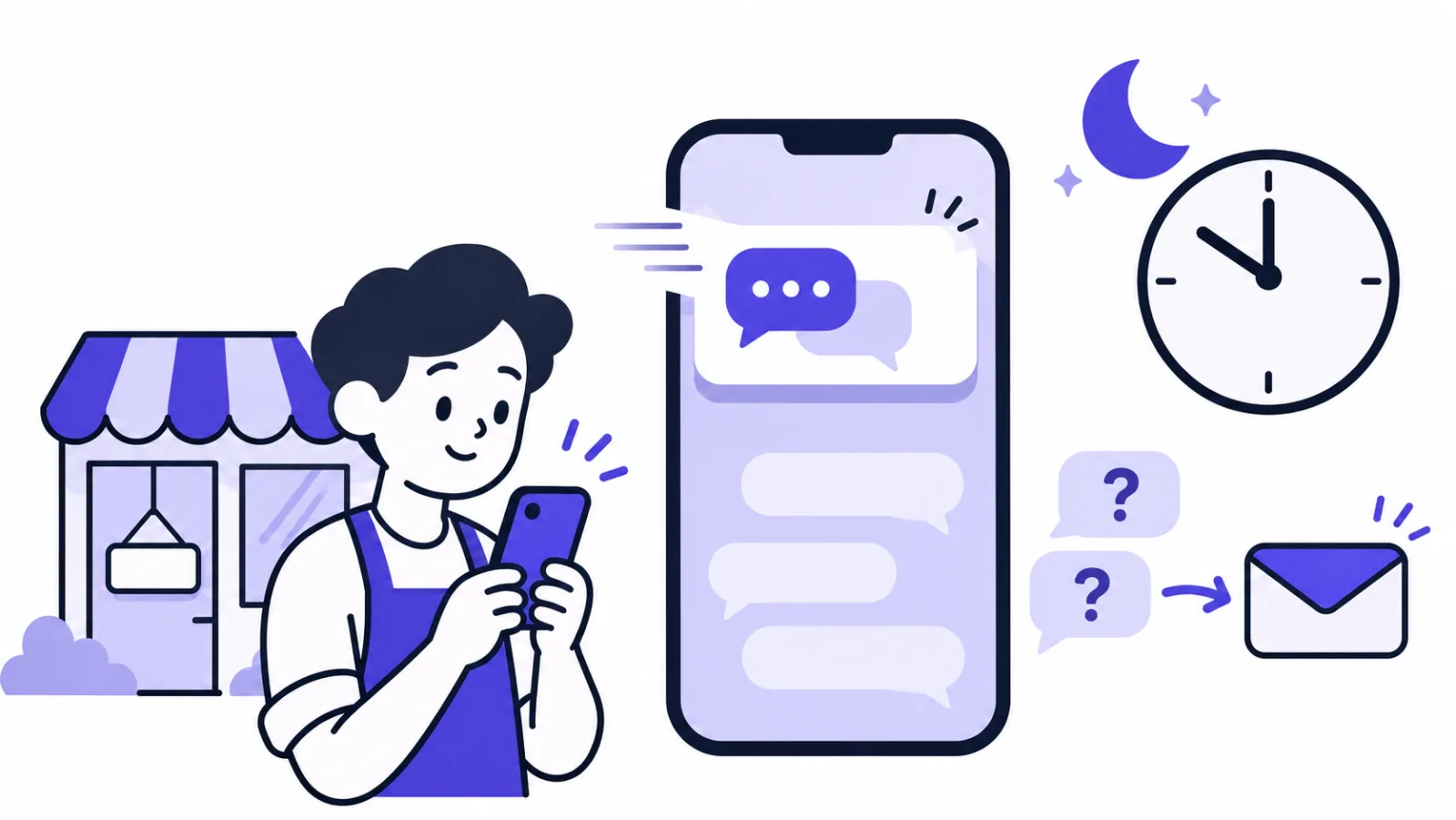
- Business hours under Hours & waiting. Outside them visitors get a message form, plus the time you're next online in their own time zone — worth a lot when half your orders come from another continent.
- After-hours note under Texts, per language: "We answer every message within one business day."
- List your questions under the message form. Add an FAQ card under Home page first — delivery times, returns, customs — then tick the box. Many shoppers answer themselves.
- Wait-time reminder: if nobody replies in time, the widget says so honestly and asks for an email, so your answer still reaches them. The chat is marked as missed and you can work through those in the morning.
Turn on Push notifications on this device from the account menu and new chats reach your phone with the console closed. More on all of this in how to never miss a customer when you're offline.
What should you put on the chat's home screen?
Put the three links shoppers ask for most — order tracking, returns and a size guide — plus your top questions. The first screen of the chat window can hold cards:
- Links: order tracking, returns policy, size guide. Every plan allows 3 links.
- Notice: "Deliveries are running 1–2 days late this week", with a date it hides itself on.
- FAQ: the five questions you answer every day.
Plans
Notices, FAQ cards and up to 10 links come with Starter and above. The Free plan shows up to 3 links.
Get this screen right and it absorbs a good share of the repeat questions.
What if the chat doesn't work on your shop?
Most WooCommerce problems come from caching, a second domain or a changed permalink base:
| Problem | Fix |
|---|---|
| Code pasted, no button | Clear your caching plugin and CDN. If the plugin has "delay JavaScript" or "combine JavaScript", add widget.js to its exclusion list. |
Nothing on the www. address |
Add both the www. and non-www. addresses under Allowed domains, one per line. |
| You changed the product permalink base | Check Settings → Permalinks and swap /product in the rules above for your own base, such as /shop. |
A multilingual plugin adds /en/product/… |
Switch the match to Address contains and use /product. |
| You use the newer Cart and Checkout blocks | The page addresses don't change, so the rules above still apply. |
| You want a line on the thank-you page | Add a greeting rule with Address contains order-received, such as "Order received — we'll email tracking as soon as it ships." |
| Spam or flooding | Set how many messages a visitor can send per minute under Visitor features → Flood protection. |
FAQ
Do I need a WooCommerce live chat plugin?
No. WooCommerce runs on WordPress, so a chat widget pasted into the site footer works on every shop page, including cart and checkout. The only plugin you may want is a general footer code plugin, so a theme update can't remove the code.
Can I add live chat to WooCommerce for free?
Yes. SealReply's Free plan has no end date and includes the widget, page rules, invitations and offline messages. Paid plans add things like notices and FAQ cards on the chat's home screen, more seats and webhooks.
Will live chat slow down my WooCommerce store?
It shouldn't hold up your pages. The SealReply widget is about 38 KB and loads asynchronously, so your product and checkout pages show before it finishes loading. To check for yourself, run the same product page through PageSpeed Insights with and without the code.
Does live chat work with the WooCommerce Cart and Checkout blocks?
Yes. The blocks change how the cart and checkout look, not their addresses, so the footer code still runs there and page rules for /cart and /checkout still match.
Can I answer WooCommerce chats from my phone?
Yes. Turn on push notifications from the account menu, or install the SealReply app: iPhone from the App Store, Android from the installer on our website. A tap on the notification opens the conversation so you can reply.
How do shoppers tell me their order number?
Add your own question to the pre-chat form under Visitor features → Before the chat, such as "Order number". The answer is saved to the visitor's details as soon as the form is sent, so you have it even if they leave before writing.
What to do after the install
- Set your shop's colour and logo under Look, with a live preview beside it.
- Save the three answers you type every day as quick replies.
- Set a follow-up date on anyone who looked ready to buy; the console reminds you when it's due.
Next: live chat for small business covers everything that comes after the install, from first reply to closing the sale.