 SealReply
"Live Chat vs Chatbot vs Contact Form: Which One Does Your Site Need?"
The live chat vs chatbot question is not about which is smarter. It is about who answers and how soon. Here is how to decide for a small site, and how to run all three at once.
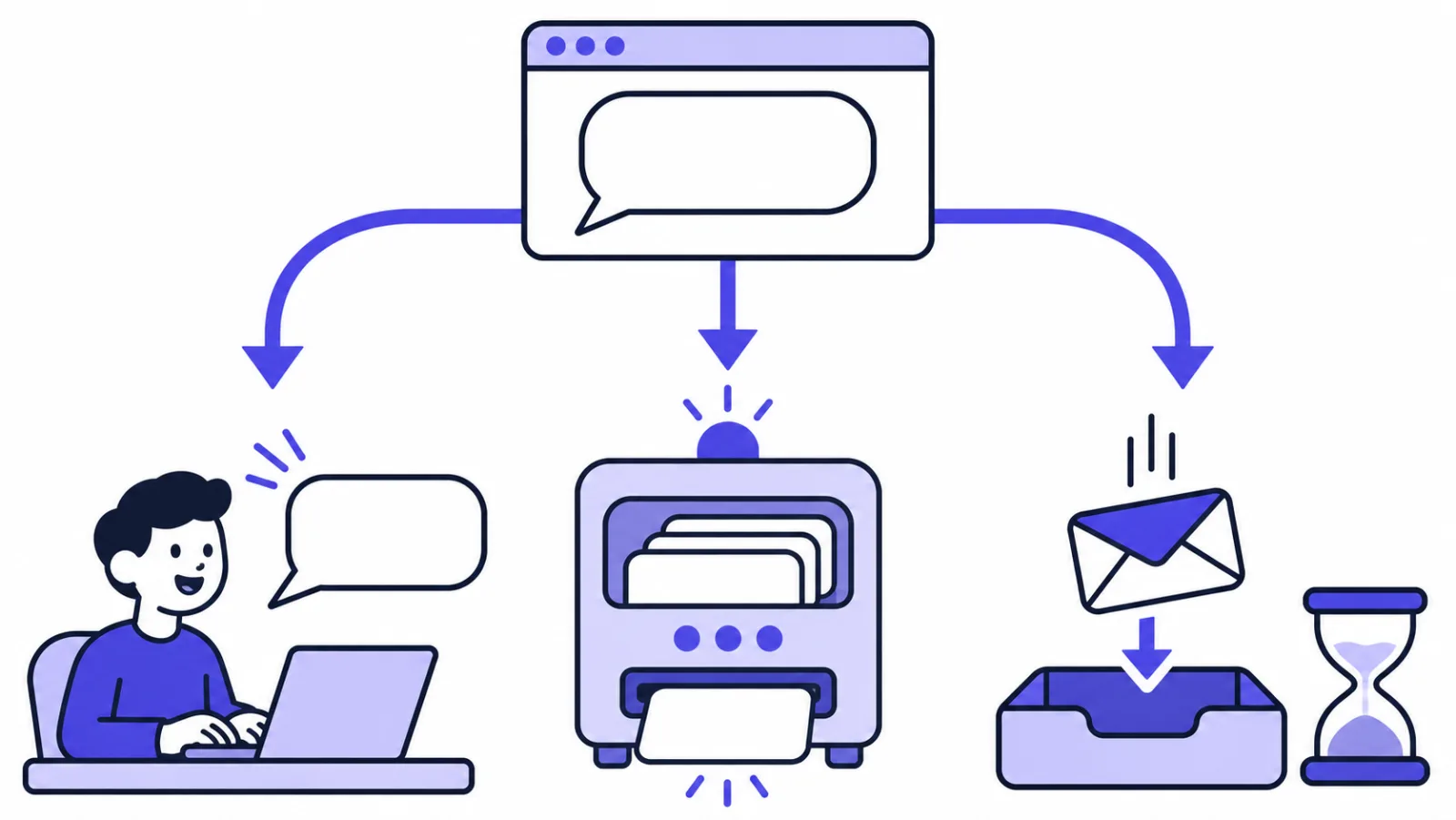
In the live chat vs chatbot comparison, the real difference is who answers: live chat puts a real person in the chat window, a chatbot replies automatically from content you prepared, and a contact form simply stores the message until someone gets to it. Most small sites do not have to choose — a person during the day, prepared answers for repeat questions, and a message form after hours can all live in one widget.
Key takeaways
- The difference is not intelligence, it is who answers and how fast: a person in seconds to minutes, a prepared answer instantly, a form in hours or days.
- Under roughly ten chats a day with questions that are all different? Start with live chat, not a bot — prepared answers only work where questions repeat.
- Automation earns its keep when the same five questions (shipping, delivery time, sizing, returns) make up a third of your inbox, and only if you keep editing them.
- Keep your contact form, but do not make it the only door: form emails land in spam, and the visitor never knows whether you got it.
- SealReply has no AI chatbot. It gives you live chat with real people, tap-to-answer quick questions you write yourself, and an offline message form for when nobody is around.
"Should I put live chat, a chatbot, or just a contact form on my site?" is hard to answer because so much writing treats the three as generations of the same product: forms are old, live chat is better, bots are the future.
Anyone who has actually run all three knows they solve different problems. A one-person store and a shop with five agents get opposite answers. Below: what actually separates them, then a way to decide based on your staffing and your questions.
What is the difference between live chat, a chatbot and a contact form?
Three definitions, used consistently for the rest of this article:
- Live chat is a chat window embedded in your pages. The visitor types, and a real person on your team answers from an inbox in real time.
- A chatbot answers automatically. A rule-based bot replies from questions and answers (or buttons) you wrote; an AI bot generates an answer from material you gave it.
- A contact form is a form on a page. The visitor fills in a name, an email and a question, it lands in your inbox or dashboard, and you reply when you can.
Side by side:
| Live chat | Chatbot | Contact form | |
|---|---|---|---|
| Who answers | A person on your team | Software, from your content or a model | A person, but not now |
| How soon | Seconds to minutes, while staffed | Instantly | Hours to days |
| Outside business hours | Turns into a message form | Still answers | Still collects |
| Accuracy | High; you can ask back before answering | High on covered questions, wrong or stuck on the rest | High |
| Setup | Install the widget, decide who is on duty | Write and test the answers, plan the handover | Add a form, set up email |
| Ongoing work | Be there, write quick replies | Keep editing from real questions | Watch the inbox |
| Best for | Someone can reply, higher-value sales, questions that need context | Lots of repetition, higher traffic | Low traffic, non-urgent, attachments |
One difference gets overlooked: the three collect very different information. In live chat you see which page the visitor is on, where they came from, and what they hesitated over. In a form you get only the few lines they were willing to type. For what else a chat tool can tell you about a visitor, see where your website visitors come from.
Which one should a small website start with?
Two questions decide it: can anyone reply during your working hours, and how much of your inbox repeats?
| Your situation | Start with | Why |
|---|---|---|
| Under 10 chats a day, all different questions | Live chat plus an after-hours message form | Too varied for prepared answers; a wrong bot answer costs more than a slow human one |
| 10 to 50 chats a day, half about shipping, delivery or sizing | Live chat plus automated answers for the repeats | The repeats answer themselves, you take the rest |
| Over 50 chats a day, mostly the same topic | Automated answers first, people behind them | At this volume a small team cannot keep up by hand |
| High-value or consultative sales (B2B, custom work, wholesale) | Live chat, form as the backup | Every answer is different; a bot has nothing to work from |
| Almost no traffic, and no time to watch it | A contact form | With nobody asking, a chat window is decoration |
Two mistakes to avoid while deciding:
- Treating a bot as free labour. Writing the answers, testing them against how people really phrase things, and revising them is real work. Below a certain level of repetition, that work costs more hours than just answering.
- Thinking live chat means always being online. It does not. Set your business hours and let the widget switch to a message form after them — far better than a chat window nobody is watching. How to never miss a customer when you are offline walks through the settings.
What does a chatbot really cost to run?
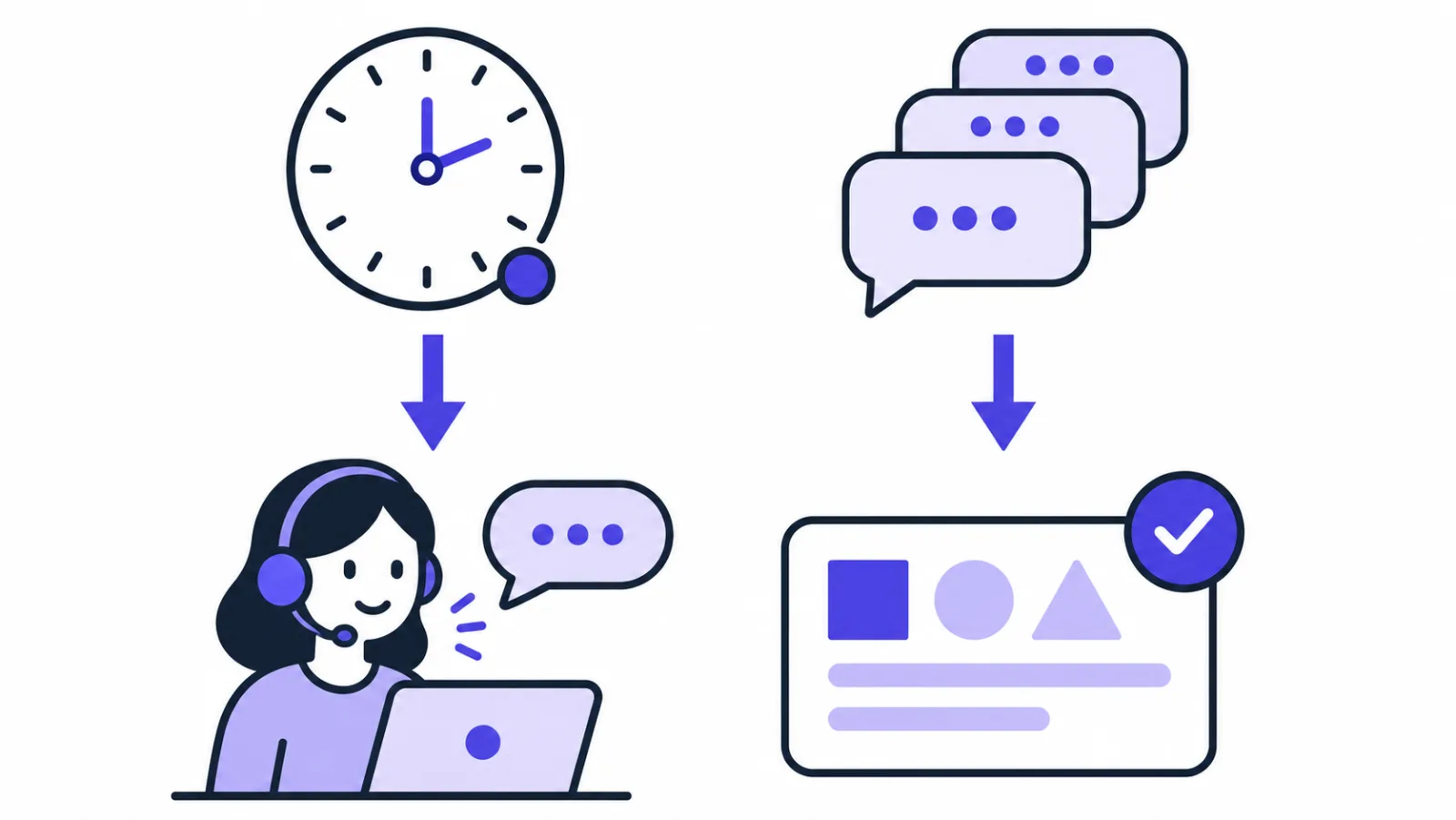
The cost is not the monthly fee, it is the content. A bot that actually helps needs three things:
- Source material. Read back through your last one or two hundred conversations, sort by how often each question appears, and write accurate answers for the top 10 to 20. This takes longer than people expect, because the answers are scattered across your shipping page, your returns policy and your head.
- Testing against real phrasing. Visitors do not ask the way you write. "Do you ship DHL", "how long does delivery take" and "can I get it by Friday" are the same question wearing different clothes.
- Maintenance. Every week or two, look at what went unanswered and add it. Every time a price, a carrier or a policy changes, the answers change too.
This is also where rule-based and AI bots differ. A rule-based bot only covers what you listed — it gets stuck, but it never invents. An AI bot covers far more ground, but where your material is thin it will produce something that sounds right and is not. Get a shipping cost, a stock level or a warranty period wrong and you spend more time repairing it than you saved.
So draw a line: automate only the questions whose answers are fixed, writable, and harmless to get slightly wrong. Anything involving changing prices, stock, promises or individual circumstances stays with a person.
Never let automation become a dead end
The annoying part is not a bot that cannot answer. It is a bot that cannot answer and offers no way out — repeating "could you rephrase that?" without telling the visitor how to reach a human. The next step must always be available: keep typing and a person takes over, or leave an email address.
Is a contact form still worth keeping?
Yes, but not as the only door. Forms are genuinely better for three things: attachments (artwork, spec sheets, invoices), non-urgent subjects (partnerships, complaints, billing), and the honest case where nobody can reply live.
Two old problems come with them:
- The visitor has no idea whether it arrived. A line saying "we will get back to you soon" is not a receipt, so people submit twice or go ask a competitor.
- The notification email lands in spam. Form plugins usually send from your web server, and without SPF and DKIM set up, that mail does not reach your inbox. Google's sender guidelines require authentication for exactly this reason. Safer: make the submissions appear somewhere you open every day, not only in email.
A more practical arrangement is to move the form inside the chat window, in two places:
- A pre-chat form. Before the first message, ask for name, email and phone — each one off, optional or required — plus up to five questions of your own (free text or a dropdown). You know who you are talking to before you answer.
- An offline message form. Shown when nobody can chat. Email and message are always required; name and phone can be off, optional or required. Submissions land under Offline messages in the console, and SealReply sends your reply by email, so there is no mail server for you to configure.
The visitor then faces one door instead of two: chat if someone is there, leave contact details if not. They never have to guess which channel is right.
How do you combine all three?
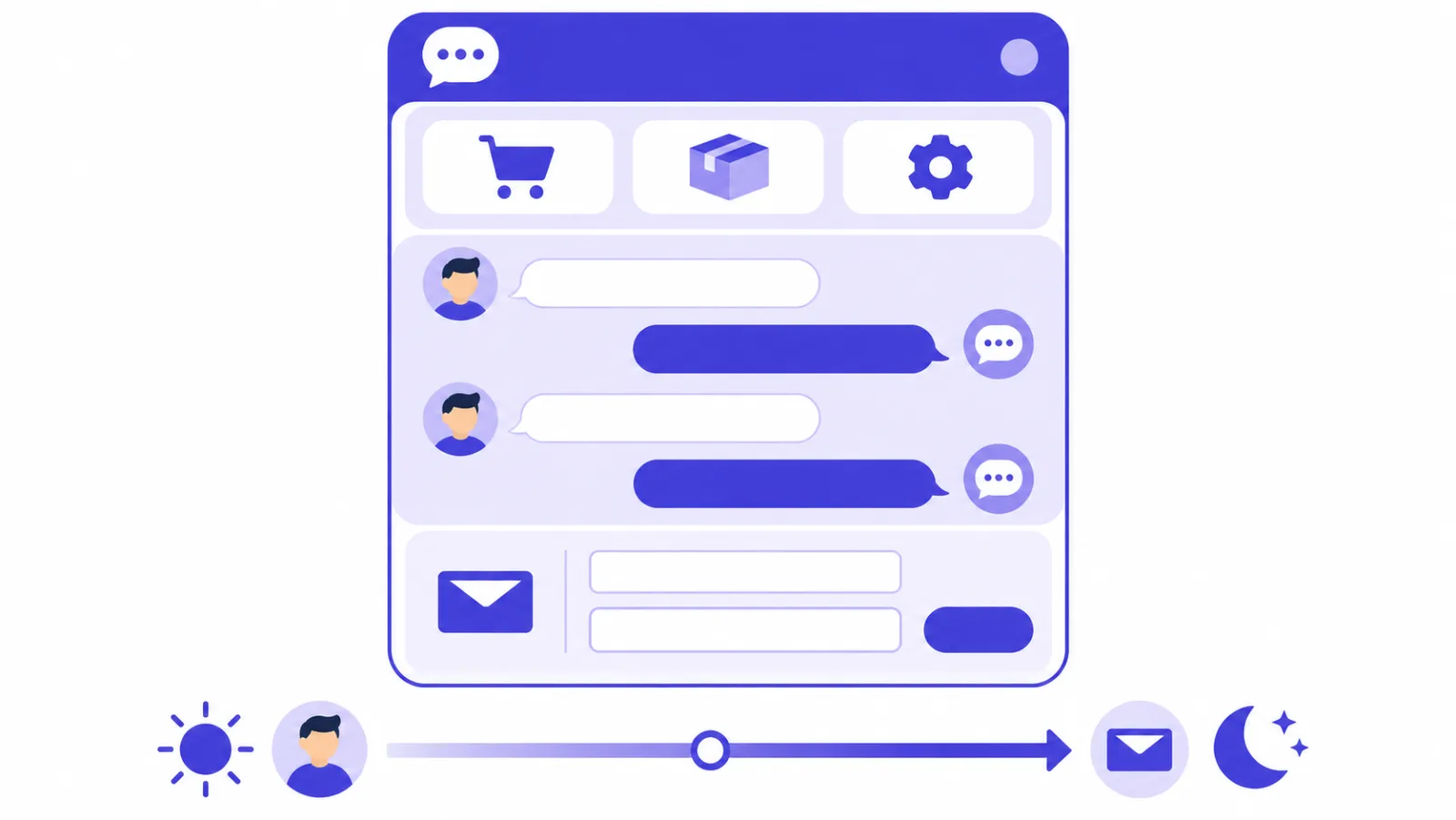
Split the work across the day: people during business hours, prepared answers for the repeats, a message form after close. For a team of one or two, this order takes the least effort:
- Live chat during the day. Set business hours with the right time zone, set the wait-time reminder (by default, after 2 minutes with no reply the widget asks the visitor for an email), and turn on push notifications on your phone.
- Turn your five to eight most common questions into automated answers. One tap, instant answer, none of your time.
- Show the message form after hours, with "tell visitors when you are back" on so the time is displayed in the visitor's own time zone.
- Read everything in one place. Clear the queue first thing each morning instead of letting it pile up in email.
- Review once a week. Promote anything that repeats into an automated answer; turn the rest into quick replies you can send with two keystrokes.
How to set this up in SealReply
SealReply is live chat for real people, and it has no AI chatbot. The automation it offers is the answer you wrote yourself. Four settings cover the arrangement above:
| What you want | Where it is | Plan |
|---|---|---|
| Automatic answers for repeat questions | Sites → your site → Home page → Add common questions, tick "show as a quick question in the chat" | Starter and up |
| Know who you are talking to first | Sites → your site → Visitor features → Pre-chat form | All plans |
| Collect messages when nobody is online | Sites → your site → Visitor features → Offline message form | All plans |
| Close after hours, ask for an email when the wait runs long | Sites → your site → Hours & waiting | All plans |
Quick questions work like this: add common questions to a Home page card, tick "show as a quick question in the chat" on each one, up to eight. Visitors see them on the widget home and above the message box. One tap sends the question and returns your answer immediately, labelled as an automatic reply.
Details worth knowing:
- When a visitor only taps quick questions, no agent is assigned, nobody is notified, and it does not count against your monthly conversations. The console marks it "Only tapped quick questions, answered automatically."
- As soon as the visitor types a message of their own, the conversation is routed to an agent as usual. The widget never shows anything like "transferring you to a human" — the handover is invisible.
- Quick questions still work outside business hours and after your monthly conversation quota runs out.
- Each answer can be up to 2,000 characters, line breaks allowed, and https links in it are clickable.
Let visitors self-serve after hours too
Under Hours & waiting, turn on "list your questions under the message form after hours". Visitors see your answers right below the form instead of waiting until morning.
The after-hours message itself is written separately under Texts, once per language. If you are not sure what to write, borrow from 25 live chat greeting messages.
Widget home cards are a paid feature
Notices, common questions and up to 10 links on the widget home need the Starter plan or above; the Free plan allows 3 links. Live chat itself, the pre-chat form, the offline message form, business hours and the wait-time reminder work on every plan, including Free — see is free live chat good enough for where the free line actually falls.
A checklist for picking your mix
Tick what is true of your site; the order falls out of the answers:
- During business hours, can someone glance at the chat within 5 minutes? If yes → install live chat.
- Do you get more than 10 enquiries a day? If yes → measure how much repeats.
- In your last 100 conversations, do the top 5 questions make up a third? If yes → automation is worth building.
- Will those answers change within three months (price, stock, promotions)? If yes → leave the numbers out of the answer, or leave the question to a person.
- Do visitors need to send files? If yes → keep a form, or allow file uploads in chat.
- Are your business hours and time zone filled in? If not → do that first, so after-hours visitors get a form.
- Do new chats reach your phone? If not → turn on push before anything else.
- Do form submissions and chats land in the same place? If not → merge them, or one side will be missed.
Fewer than four ticks? Start with live chat plus offline messages and leave automation for later. For choosing the tool itself, see how to choose live chat software.
FAQ
Can a chatbot replace live chat?
Not completely, but it can replace part of it. Questions with fixed answers — shipping costs, delivery times, the returns policy, opening hours — automate well. Anything that needs context, touches stock or pricing promises, or reaches a visitor who is already frustrated still needs a person. That is why most small sites run automation in front and people behind, rather than choosing one.
Does SealReply have an AI chatbot?
No. SealReply is live chat staffed by your team. The only thing it answers automatically is a quick question you wrote yourself: the visitor taps it and immediately gets your answer, labelled as an automatic reply. It does not generate text and it does not guess, so it cannot give a wrong answer.
Will a chat widget slow my site down?
The SealReply widget is about 38 KB of asynchronous script and does not block the page from rendering, and Sites → Install also offers an embed code that loads it after the page has finished. The general way to judge any third-party script is to measure with PageSpeed Insights; Google's guide to third-party JavaScript covers the loading strategies.
Should I run a contact form and live chat at the same time?
Running both is fine, as long as the doors are narrow. The usual setup is one chat button sitewide — chat when someone is online, a message form when nobody is — plus a form on the Contact page for people with attachments or long messages. Just make sure both land in one place to review, or one of them will quietly rot.
How many enquiries do I need before live chat is worth installing?
There is no threshold. It installs in minutes and costs nothing while idle. The real threshold is whether anyone is watching: at one or two chats a day, all that matters is that the notification reaches your phone; past ten a day you start needing routing rules and automated answers. Live chat for small business covers the full progression.
How do I stop spam in the chat window?
Under Sites → your site → Visitor features, turn on Flood protection and set how many messages a visitor may send per minute (3 to 60). Anything beyond that is refused for a moment and the visitor is tagged "Sent too fast", so you can filter for them in the inbox or block them. On the form side, a required email address and a daily glance do most of the work.
Where to go next
If your site has only a contact form today, the highest-value next step is not researching bots. It is letting visitors ask on the page and letting the question reach your phone. Install live chat, fill in your business hours, run it for two weeks, and let what people actually ask tell you which answers are worth automating.